Chat Input
El patrón Chat Input permite al usuario escribir, enviar y visualizar mensajes dentro de un flujo de conversación. Su diseño combina un campo de entrada expandible con acciones contextuales como envío, adjunto o accesos rápidos. Está pensado para maximizar la fluidez y naturalidad en interfaces conversacionales.
import React, { useState } from "react";
import { Box, IconButton } from "@nimbus-ds/components";
import { ChatInput } from "@nimbus-ds/patterns";
import {
  PlusCircleIcon,
  PlusIcon,
  MicrophoneIcon,
  ArrowupIcon,
} from "@nimbus-ds/icons";

const Example: React.FC = () => {
  const [message, setMessage] = useState<string>("");

  return (
    <Box p="4" width="100%">
      <ChatInput>
        <ChatInput.Field
          id="ai-generative"
          placeholder="Placeholder"
          lines={1}
          value={message}
          onChange={(e: React.ChangeEvent<HTMLTextAreaElement>) =>
            setMessage(e.target.value)
          }
        />
        <ChatInput.Actions>
          <Box display="flex" gap="2" alignItems="center">
            <ChatInput.Popover
              content={
                <>
                  <ChatInput.PopoverButton
                    icon={<PlusCircleIcon />}
                    text="Upload file"
                    onClick={() => console.log("Upload file clicked")}
                  />
                  <ChatInput.PopoverButton
                    icon={<PlusCircleIcon />}
                    text="Upload photo"
                    onClick={() => console.log("Upload photo clicked")}
                  />
                </>
              }
            >
              <IconButton
                color="neutral-textLow"
                source={<PlusIcon />}
                size="2rem"
                borderColor="transparent"
                backgroundColor="transparent"
              />
            </ChatInput.Popover>
          </Box>
          <Box display="flex" gap="2" alignItems="center">
            <IconButton
              color="neutral-textLow"
              source={<MicrophoneIcon />}
              size="2rem"
              borderColor="transparent"
              backgroundColor="transparent"
            />
            <IconButton
              color="neutral-textLow"
              source={<ArrowupIcon />}
              appearance="ai-generative"
              disabled
              size="2rem"
            />
          </Box>
        </ChatInput.Actions>
      </ChatInput>
    </Box>
  );
};

export default Example;Instalá el componente via terminal.
npm install @nimbus-ds/chat-inputChat Input
El patrón Chat Input permite al usuario escribir, enviar y visualizar mensajes dentro de un flujo de conversación. Su diseño combina un campo de entrada expandible con acciones contextuales como envío, adjunto o accesos rápidos. Está pensado para maximizar la fluidez y naturalidad en interfaces conversacionales.
- En flujos donde el usuario interactúa mediante mensajes o comandos de texto.
- En asistentes virtuales o bots que guían al usuario por medio de conversación.
- En formularios progresivos o experiencias que simulan diálogo humano-producto.
- Cuando se requiere una entrada extensa o multisección (usar un textarea estándar).
- Si la interacción no es conversacional ni requiere input continuo.
- Para contenido estructurado que no simula diálogo (usar formularios tradicionales).
- Inicio rápido: el input debe estar enfocado automáticamente al abrir el chat, permitiendo comenzar a escribir sin clics adicionales.
- Navegación fluida con teclado: soporte completo de Tab y Enter para enviar mensajes sin dependencia del mouse.
- Visibilidad del estado del sistema: indicar visualmente su estado (activo, deshabilitado, pensando respuesta) de manera clara y consistente.
- Adaptabilidad al contenido: el campo debe expandirse automáticamente al escribir múltiples líneas (máximo 8 en desktop y 6 en mobile), sin interrumpir el ritmo del usuario.
- Compatibilidad con tareas paralelas y facilidad para retomar: permitir que el usuario interactúe con otras partes de la UI mientras escribe, conservar el mensaje escrito (si no fue enviado) y posicionar el cursor donde el usuario lo dejó.
- Soporte completo para navegación por teclado: el input y los botones deben ser accesibles con Tab y activables con Enter o Space.
- Lectura de estados con screen reader: usar aria-live para anunciar mensajes enviados o errores.
- Manejo de foco inteligente: al cerrar y reabrir el chat, mantener el foco en el input si corresponde.
El patrón Chat Input puede incluir:
- Text area expandible
- Placeholder contextual
- Submit icon button
- Scroll bar
- Icon buttons opcionales (comando voz, más opciones)
- Pop over opcional (adjuntar archivos o fotos)
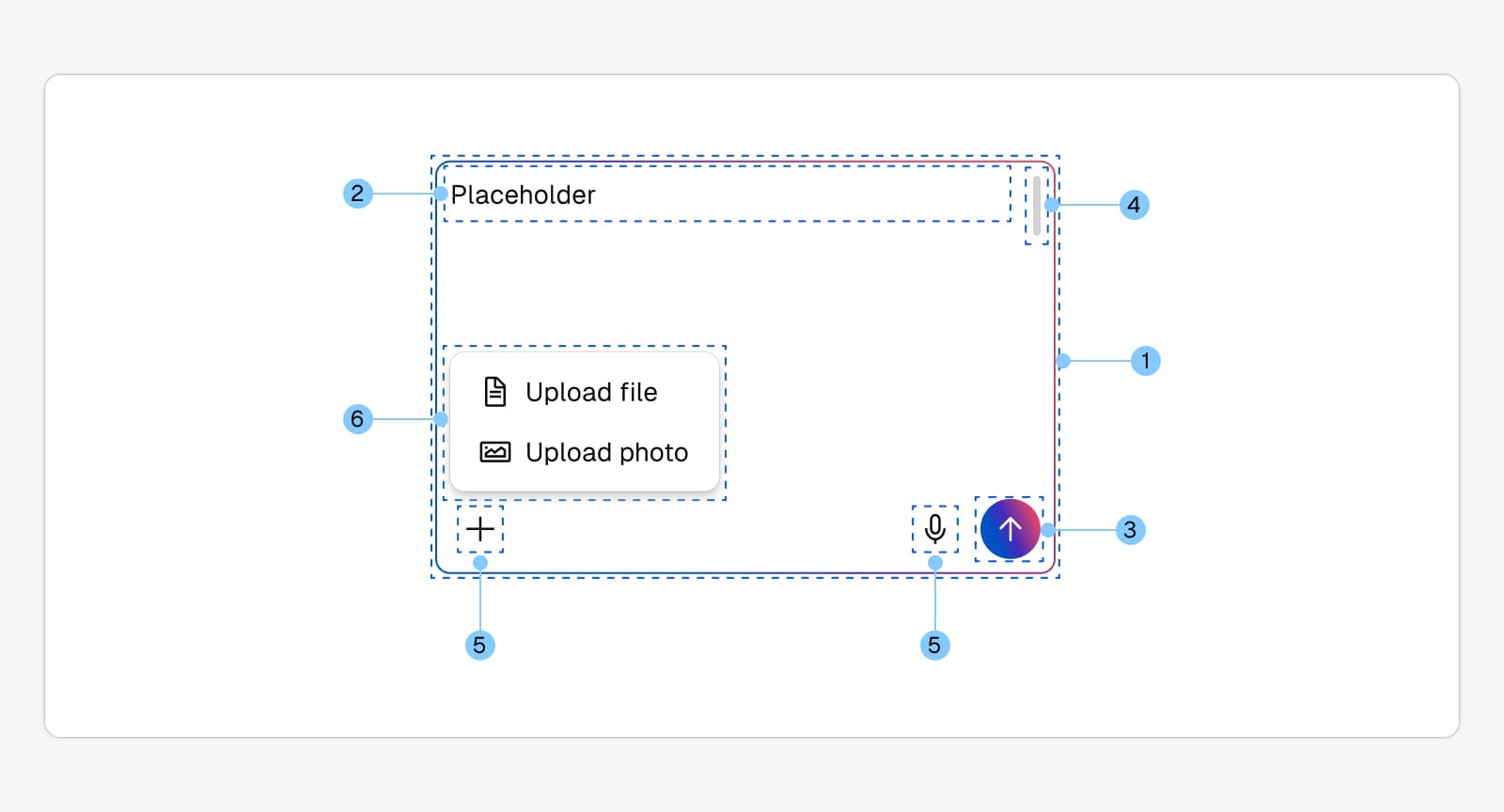
Este patrón puede usar:
- #input
- #icon-button
- #popover
- #icon
Versión minimalista con solo el campo de texto y botón de envío.
Muestra íconos adicionales como "activar comando por voz" o "más opciones" que levanta un pop over con funciones como "adjuntar archivo" o "adjuntar fotos".
Cuando el texto supera el espacio inicial, el campo crece dinámicamente en altura.
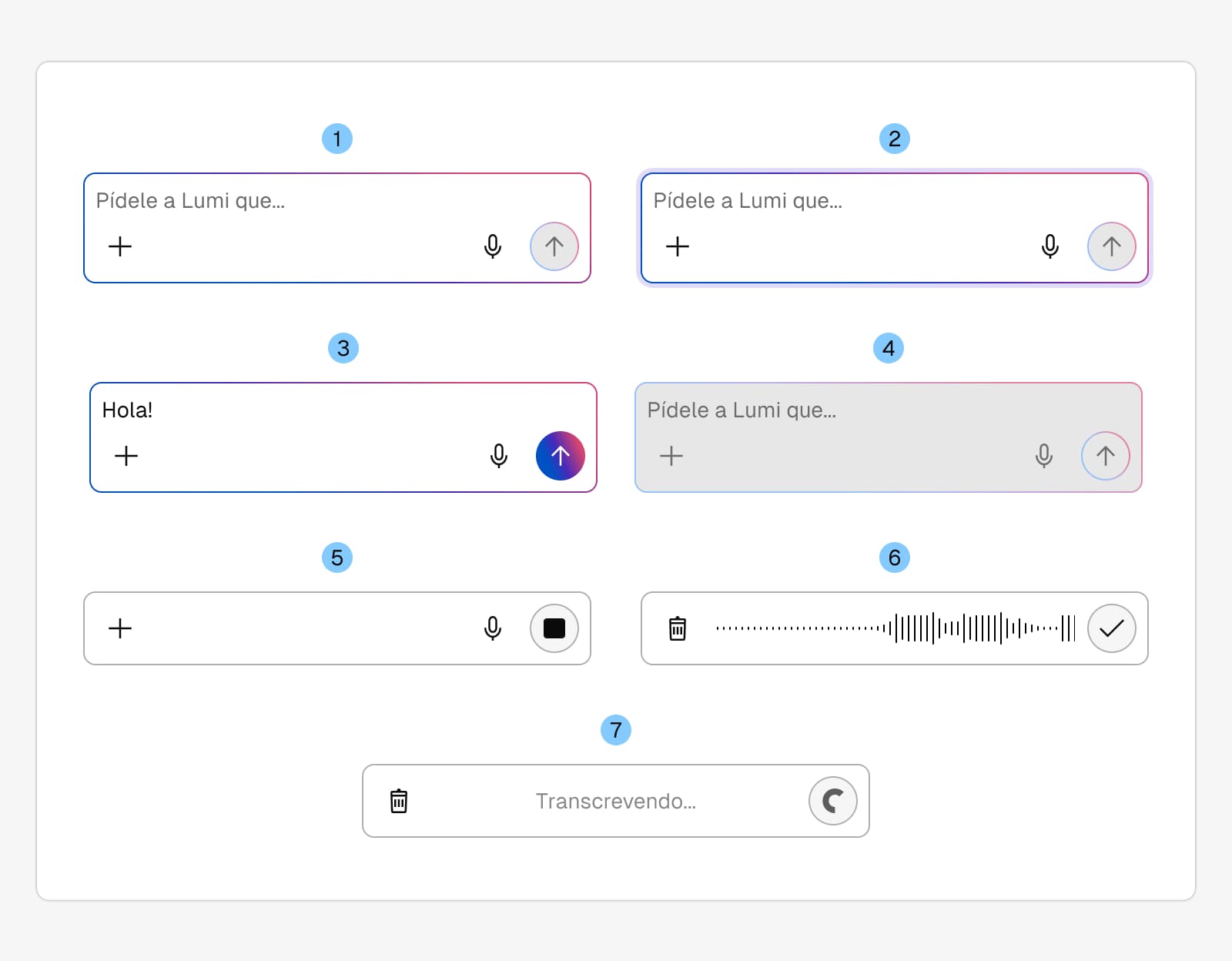
El Chat Input puede tener múltiples estados visuales y funcionales. Entre ellos:
- 1. Rest: input vacío, con íconos disponibles.
- 2. Focused: campo activo con borde destacado.
- 3. Filled: input con contenido listo para enviar.
- 4. Disabled: input inactivo por estado de sistema, se muestra cuando no se puede enviar mensaje o mientras carga el envío reciente.
- 5. Thinking: muestra ícono de stop mientras se procesa la respuesta al mensaje.
- 6. Recording: muestra el estado activo de la grabación de voz con un indicador de audio y el botón de envío se transforma en stop.
- 7. Transcribing: se activa inmediatamente tras detener la grabación, mostrando un Spinner y el texto "Transcribiendo..." mientras el audio se convierte a texto en el campo de entrada, previo a su envío.
✅ Do
- Utilizarlo en flujos de conversación inmediata o respuesta rápida.
- Permitir adaptar el ancho del componente a su contenedor.
- Proveer acciones secundarias relevantes al flujo.
- Incluir distintos estados y casuísticas posibles especificas si existieran (largo de texto, popover con acciones secundarias, etc.)
❌ Don't
- Utilizarlo en flujos con respuesta diferida o formularios ajenos a la acción inmediata.
- Adicionar más acciones visibles que las que el componente permite (envío, comando voz, ver más).
- Mostrar más de cinco acciones secundarias en simultáneo dentro del popover.
Las propiedades adicionales se pasan al elemento <ChatInput>. Consultá la documentación para ver la lista de atributos aceptados por el elemento <ChatInput>.
ChatInput
| Name | Type | Default | Description |
|---|---|---|---|
children* | React.ReactNode | Content to be rendered inside ChatInput, usually `ChatInput.Actions` and `ChatInput.Field`. | |
aiFocused | boolean | Whether the ChatInput is focused for AI states. |
ChatInput.Actions
| Name | Type | Default | Description |
|---|---|---|---|
children* | React.ReactNode | Content to be rendered at both sides of the actions bar. |
ChatInput.Field
| Name | Type | Default | Description |
|---|---|---|---|
id* | string | ID of the textarea | |
resize | boolean | 'true' | Enable/disable textarea resize functionality |
aiGenerated | boolean | Highlights the field to indicate its value was generated by AI. Applies AI gradient border, white background and an AI focus ring. | |
lines | number | '2' | Number of lines to be rendered for the user to input text |
autoGrow | boolean | 'false' | Controls intrinsic sizing behavior of the field. When true, the textarea will grow with content up to the maxLines limit (if provided) and then scroll. |
maxLines | number | Caps the textarea visual height to the given number of lines. When used together with autoGrow=true, the textarea will grow with content up to this limit and then scroll. | |
minLines | number | Sets the minimum height of the textarea to the given number of lines. The textarea will never shrink below this height, even when empty. | |
appearance | 'ai-generative' | Predefined appearance values for AI states. When `"ai-generative"` is passed, the field displays the Nimbus AI generative border and focus ring. |
ChatInput.Popover
| Name | Type | Default | Description |
|---|---|---|---|
content* | React.ReactNode | Content to be rendered inside the popover, usually ChatInput.PopoverButton components. | |
contentProperties | object | ||
children* | React.ReactNode | The trigger element that opens the popover, usually an IconButton. |
ChatInput.PopoverButton
| Name | Type | Default | Description |
|---|---|---|---|
icon | React.ReactNode | Icon element to be displayed before the text. | |
text | React.ReactNode | The text content of the button. | |
onClick | object | Click handler for the button. |
Ayudanos a mejorar la documentación
¿Encontraste un problema o tenés una sugerencia? Contanos.